
Aydın Tiryaki & Claude Opus 5.5
Methodology
This guide is the Claude counterpart to the earlier guide on the same subject for Gemini (4). The first method described here was tested live in a chat session on the night of 30–31 October 2026, and it worked. The other methods are based on Anthropic’s official help and developer documentation (1, 2, 3). In the Turkish version of this article, Skills are referred to as “yapay zekâ yordamı” (AI procedure), or “yordam” for short. This English version uses the platforms’ own term, “skill”.
Introduction: One file, two platforms
SKILL.md is a plain-text format that has become a common standard across AI platforms. The file opens with a name and a description, followed by the body of the skill’s instructions. A SKILL.md file written for Gemini should, in principle, also work in Claude, because the real value of the file lies in the algorithm it contains. The platform is only the tool that runs that algorithm.
This guide grew out of an experience that confirmed exactly that. The QR Code Designer skill (gdn084) had been built for Gemini with the ATG Gem Factory (5), but it never produced correct output in Gemini. In Aydın Tiryaki’s assessment, the skill’s design was sound and the problem lay in Gemini’s output stage, something Gemini itself acknowledged on occasion. When the file was added, unchanged, to a Claude chat, the skill worked on the first attempt. Claude was then asked to save the file as a permanent skill. The first method in this guide is precisely that path.
1. Before you start
A. Plans: Skills are available on Claude’s free and paid individual plans (Free, Pro, Max, Ultra) and on its organisational plans (Team, Enterprise) (1).
B. Required setting: Skills need code execution and file creation to be switched on. On individual plans, this setting is under “Settings > Capabilities”, labelled “Code execution and file creation” (“Create and edit files” in the updated layout) (1). On Team and Enterprise plans, an organisation owner turns it on.
C. Your skills list: Installed skills appear under “Customize > Skills”. Each one has a toggle beside it for switching it on or off (1).
2. SKILL.md in Claude: How it differs from Gemini
A. The name rule: A name can be at most 64 characters long and may contain only lowercase letters, numbers and hyphens. It cannot contain the words “claude” or “anthropic” (3). This means that letters outside basic ASCII, such as the Turkish ı, ş, ğ, ç, ö and ü, cannot be used in the name field. “qr-kod-tasarimcisi-atg”, for example, is a valid name. The skill’s human-readable name (“QR Kod Tasarımcısı” in Turkish, “QR Code Designer” in English) lives in the description field instead.
B. Description length: The documentation contradicts itself on this point. The help article gives a maximum of 200 characters (2), while the developer documentation sets the limit at 1,024 characters (3). In the live example in this guide, a 993-character description was saved through a chat without any problem, and the skill worked. Whether a ZIP upload accepts the same length was not tested separately.
C. What the description does: Claude decides when to bring a skill into play by reading its description. The description should therefore state clearly both what the skill does and when it should be used (2, 3).
D. File structure: In Claude, every skill is a folder. The folder must have the same name as the skill, and the SKILL.md file must sit inside that folder (2).
3. Downloading and checking the file
The files for the skills Aydın Tiryaki shares are in the “Yol TR” (Turkish) and “Yol EN” (English) Google Drive folder links, which appear in each skill’s description and on its documentation page. The files in these folders are the versions prepared for Gemini. Sections 4 and 5 of this guide explain how to use them in Claude.
The advice in the Gemini guide (4) applies here unchanged:
- Download the file rather than copying it from the Drive preview.
- Make sure the file name stays exactly “SKILL.md” and does not turn into something like “SKILL (1).md”. This is essential if you plan to upload a ZIP; with a different name, the upload may fail.
- Read the instructions from start to finish before installing.
Anthropic also recommends reviewing downloaded skills before enabling them (2). Skills run in Claude’s code execution environment, so do not install a file whose behaviour you do not understand.
4. Ways to install a skill
Method 1: Try it in a chat first, then save it
This is the easiest and most instructive route in Claude. It needs no menus and no ZIP file, and it has two stages.
Stage one, trial: Open a new chat and either attach the SKILL.md file or paste its contents. Claude applies the instructions in that chat straight away. Nothing is saved at this stage; you are simply running the skill on a trial basis, in that one chat.
In the live example, a web address was sent along with the file. The skill’s rule, “if the user sends an address directly, generate the QR code without asking”, picked it up. Claude generated a genuine QR code matrix in Python and, before presenting it, ran the read-back test the skill requires. The decoded data matched the address exactly.
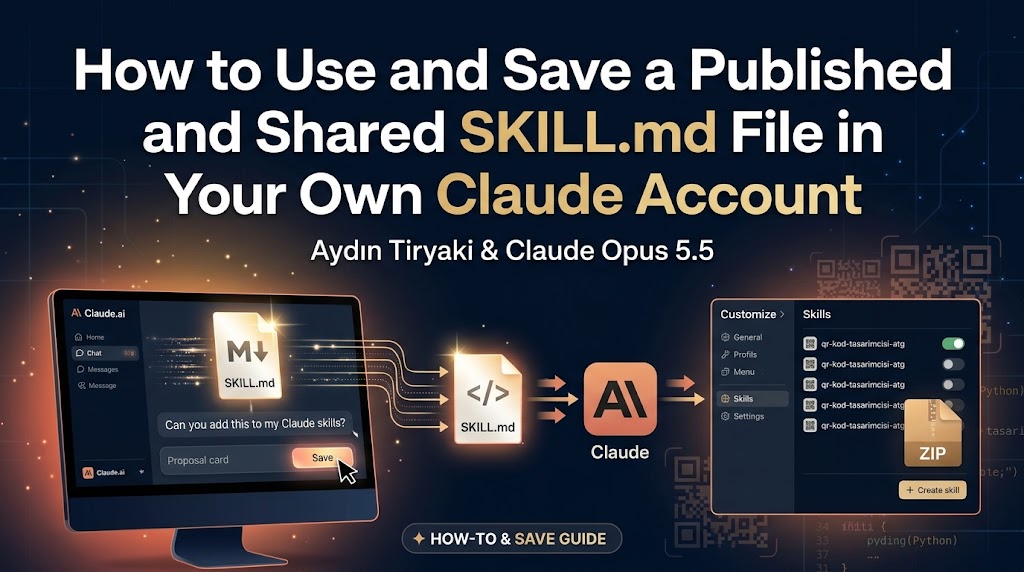
Stage two, saving: Once you have seen the skill behave as expected, ask Claude in the same chat something like: “Can you add this to my Claude skills?” In the live example, Claude asked one question before saving: should the file be taken over exactly as it was, or adapted for Claude? Adaptation was chosen. Claude presented the adapted SKILL.md in the chat as a proposal card, and pressing the card’s “Save” button added the skill to the account. From then on, the skill comes into play by itself in any chat that asks for a QR code.
The advantage of this method is that you see the skill actually working in your own account before you save it, and the card leaves the final decision to you. One caveat: the proposal card may not appear in the same way in every account or every Claude environment. If no card appears, use Method 2.
Method 2: Upload a ZIP from the settings panel
This is the official upload route documented by Anthropic (1, 2):
a) On your computer, create a folder with the same name as the skill, for example “qr-kod-tasarimcisi-atg”.
b) Put the SKILL.md file inside that folder.
c) Compress the folder into a ZIP file. On Windows, right-click the folder and choose “Send to > Compressed (zipped) folder”. The top level of the ZIP must contain the folder itself, not loose files (2).
d) In Claude, go to “Customize > Skills”, click the “+” button and then “+ Create skill”.
e) Choose “Upload a skill” and upload your ZIP file (1).
If the upload fails, the most common causes are invalid characters in the name or description, a folder name that does not match the skill name, and exceeding the size limit (1).
Method 3: Build it with the skill-creator skill
Claude has a ready-made skill for building skills: skill-creator. Attach your SKILL.md file to a chat and ask Claude to “use skill-creator to turn this into a Claude skill”. This route does more than save the skill. It can also be used to rewrite the description around how Claude decides to trigger skills, to test the skill against sample requests, and to measure how reliably it triggers. It is a more advanced route, best suited to people who develop their own skills.
Method 4: Use it as project instructions
Instead of a skill, you can set up a Claude Project. To do this, paste the body of the SKILL.md file into the project’s instructions field. The instructions then apply only to chats inside that project, whereas a skill comes into play by itself, when needed, in any chat. For instructions tied to one particular piece of work that should not spill over into other chats, the project route is still useful.
5. Adapting a Gemini file for Claude
A file written for Gemini mostly works in Claude as it is, but some lines may be specific to Gemini. In the live example, Claude made the following changes during adaptation:
A. Footer: The “Gemini Model” and “Gemini Thinking Level” fields at the end of each reply were changed to the Claude model. The thinking level is now written only when the user states it, because Claude cannot see that setting in the interface.
B. Tools Claude does not have: The stage that relied on Gemini’s image generation tool (image_generation) was removed, since it can never be triggered in Claude. The ban on artistic rendering, meanwhile, was widened to cover QR look-alikes drawn in SVG, HTML or by hand.
C. Tool names: The name of Gemini’s file display tool was replaced with its Claude equivalent.
Two platform-independent technical findings also emerged during adaptation and were added to the skill:
D. Quiet zone correction: The Python encoder used (cv2.QRCodeEncoder) added a white border of only 2 modules around the matrix, whereas the ISO/IEC 18004 standard requires at least 4. A rule was added to the skill to trim that built-in border and replace it with exactly 4 modules.
E. Capacity warning: The web address in the test was exactly 154 bytes, which is precisely the capacity limit for Version 7 at Level L. One more character would have pushed the code up to Version 8. A rule was added so that the skill suggests a short link whenever the data reaches a version’s limit.
Neither finding is specific to Claude, and both strengthen the Gemini version of the skill as well. An improvement discovered on one platform belongs to the algorithm and can be carried to any platform.
6. Invoking and running a skill
A. Automatic triggering: Once saved, a skill is called by Claude automatically whenever your request matches its description. Simply saying “Make a QR code for this address” is enough.
B. Calling it by name: If you want Claude to use a particular skill, name it in your message, for example “Using the QR Code Designer skill…”.
C. Switching it on and off: If you do not want a skill to come into play for a while, turn it off with its toggle under “Customize > Skills”. Claude does not use skills that are switched off (1).
7. Updating and personalising a skill
A. Tracking new versions: The version number of every shared skill is written in its description and on its documentation page, so you can follow new releases from there.
B. Ways to update: Personal skills uploaded as ZIP files cannot be updated in place. The old skill is switched off and deleted, and the new ZIP is uploaded (1). If you use the chat route, you can attach the new SKILL.md to a chat and ask Claude to update the existing skill; Claude will again present a proposal card.
C. Adding your own rules: Under “Customize > Skills”, open the skill’s file, select the text you want to change, and type your request using “Edit with Claude” (2).
D. A warning: A full update rewrites the whole skill, and any rules you added yourself are lost in the process. To avoid this, keep your personal rules somewhere separate, or copy the skill under a different name to create your own version.
8. How skills carry over to other Claude environments
Skills you enable on claude.ai also become available in Claude Code when you sign in with the same account, and in the Microsoft 365 add-ins (Excel, PowerPoint, Word and Outlook) (1). Skills uploaded to the Claude API, by contrast, are managed separately and are not shared with claude.ai (3).
9. A live example: QR Code Designer (gdn084)
Method 1 of this guide was carried out on the night of 30 October 2026 with QR Code Designer v01.02, using its Turkish version. The file had been produced that same evening with the ATG Gem Factory (Skills Edition) v14.11, and it was not producing correct output in Gemini. In Claude, the following happened in order:
- The file was added to a chat without any changes.
- The skill worked on the first attempt and produced a QR code that passed the read-back test: Version 7, 45×45 modules, Level L.
- Claude was asked to save the file as a permanent skill.
- Claude asked whether the file should be adapted or taken over exactly as it was. Adaptation was chosen.
- The adapted SKILL.md was saved through a proposal card, and the skill went into use.
If you would like to try the skill yourself:
- Documentation page: https://aydintiryaki.org/2026/06/19/gdn084/ (5)
- Yol EN (English folder): https://drive.google.com/drive/folders/1JzX2dnP7NyO9EWQ-UCbXA4Wekih6k6bO?usp=drive_link
- Yol TR (Turkish folder): https://drive.google.com/drive/folders/1eWdNGf-L_H4VV4o9qQQbh7SiEp3IMEQy?usp=drive_link
The folders contain the current published Gemini version of the skill, which may be newer than the v01.02 used in the test. The Claude-adapted version is not in the folders; you create that for your own account in stage two of Method 1.
References
(1) Anthropic. “Use skills in Claude.” Claude Help Center. https://support.claude.com/en/articles/12512180-use-skills-in-claude
(2) Anthropic. “How to create custom skills.” Claude Help Center. https://support.claude.com/en/articles/12512198-how-to-create-custom-skills
(3) Anthropic. “Agent Skills – Overview.” Claude Platform Docs. https://platform.claude.com/docs/en/agents-and-tools/agent-skills/overview
(4) Aydın Tiryaki. “How to Use and Update a Published and Shared SKILL.md File in Your Own Gemini Account.” 30 October 2026. https://aydintiryaki.org/2026/10/30/how-to-use-and-update-a-published-and-shared-skill-md-file-in-your-own-gemini-account/
(5) Aydın Tiryaki. “QR Code Designer (gdn084)” documentation page. https://aydintiryaki.org/2026/06/19/gdn084/
Colophon
The idea, the live experiment and the method behind this article belong to Aydın Tiryaki. The decision to try the QR Code Designer skill in Claude, as a file that failed in Gemini but whose design he judged to be sound, the request to save it as a Claude skill, and the choice to adapt it were all his.
The text was written by Claude Opus 5.5. The compilation of the methods, the review of the official documentation, the identification of the contradiction over description length, the changes made in adapting the skill from Gemini to Claude, and the two technical findings (the quiet zone correction and the capacity warning) are Claude Opus 5.5’s contributions. For this reason, the article carries a double byline.
The Turkish draft was submitted to Gemini 4 Argon for cross-review. Following Gemini’s suggestions, the section numbering that broke on display was fixed, the Google Drive folder links were added, and the importance of the exact SKILL.md file name for ZIP uploads was emphasised. Gemini’s suggestion that Ultra is not among Claude’s individual plans was not adopted, because Anthropic’s official documentation (1) lists the Ultra plan explicitly.
The Turkish text was written first. This English version was adapted from it, and rewritten for English-language readers, by Claude Opus 5.5. (31 October 2026)
| aydintiryaki.org | YouTube | Aydın Tiryaki’nin Yazıları ve Videoları │Articles and Videos by Aydın Tiryaki | Bilgi Merkezi│Knowledge Hub | ░ Virgülüne Dokunmadan │ Verbatim ░ | ░ Yayımlanmış ve Paylaşılmış Bir SKILL.md Dosyasını Kendi Claude Hesabınızda Nasıl Kullanabilir ve Kaydedebilirsiniz? │How to Use and Save a Published and Shared SKILL.md File in Your Own Claude Account ░ 31.10.2026

