
Author: Aydın Tiryaki
Methodology
This guide article has been prepared to explain step by step how the open-source Gemini Skills files (for which the author proposed the Turkish equivalent Yordam) shared by the author can be defined, executed, and updated by other users in their own accounts. The text was structured with the assistance of Gemini 4 Argon in accordance with the implementation principles and field experiences established by the author, and finalized in terms of functional accuracy, factual integrity, and stylistic consistency through a four-stage cross-evaluation process conducted with Claude Opus 5.5.
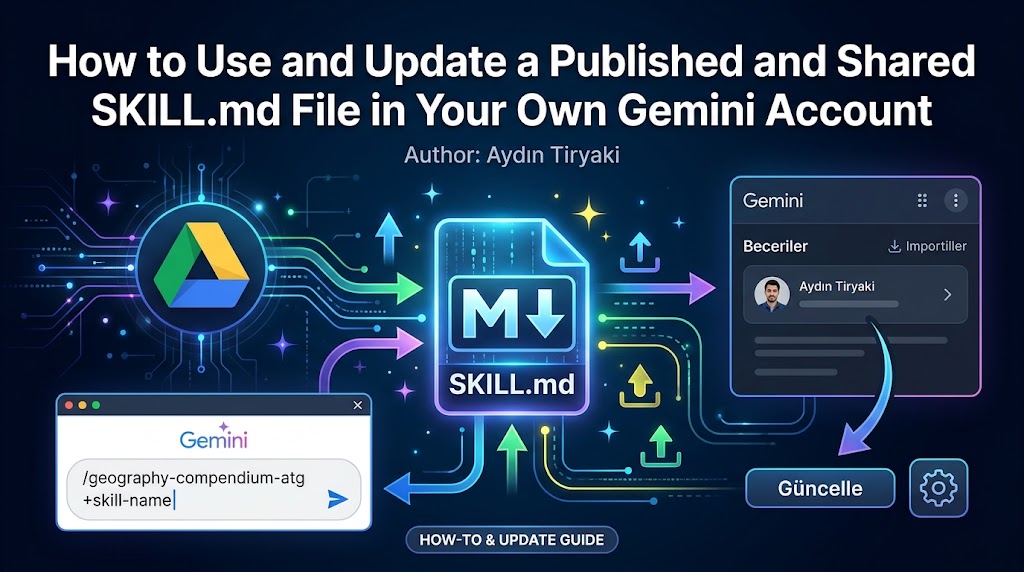
Introduction: Open-Source Procedure Sharing and the SKILL.md Standard
I share my Gemini Skills projects—which Google labels as “Beceriler” in the Turkish interface, whereas I propose “Yordam” (procedure/routine)—developed for specialized tasks and various disciplines within the Google Gemini ecosystem through comprehensive introductory articles published on my website (1). I do not merely introduce these tools, which I previously designed as custom Gems and adapted to the new Gemini Skills architecture according to my own quality standards ahead of the transition timeline Google will initiate on November 17, 2026; at the end of every article, package page, and document page, I also make the SKILL.md file—the very heart of that procedure—openly and accessibly available for use (2).
In doing so, I enable enthusiasts, researchers, and users interested in these topics to load and experience the Turkish or English Skill projects I introduce directly within their own Gemini accounts. In this guide article, we will cover in full detail which users and subscription plans can use this feature, how you can access a shared SKILL.md file, how to turn it into an active Skill in your own Gemini account, how to invoke and run it, and how to update it over time.
1. Before You Begin: Which Users and Which Plans Can Set Up SKILL.md?
Before downloading and setting up a shared SKILL.md file, you need to know whether your Gemini account and subscription plan support this feature. According to current system rules, the subscription plans and account requirements are as follows (3, 4, 5, 6):
A. Free Users vs. Paid (Pro / Ultra) Subscribers
- Free Plan Support in Standard Gemini Chats: Google does not require a paid subscription to create a Skill in the standard Gemini interface, upload (import) an externally shared SKILL.md file to an account, and run it within a chat (3). Therefore, free-tier Gemini users can also set up and use the SKILL.md files I share in their own accounts.
- What Is the Difference with Paid Plans (Google AI Pro and AI Ultra)?
- Model Capacity and Field Observation: When you set up and run a Skill in a free account, the language model processing that procedure in the background operates with the standard model and daily message quotas offered by the free plan. In my own work, I observed that I could run Skills with very long and detailed instructions (for example, the 39,600-character Gem Factory) smoothly on the Gemini 4 Argon model under the paid plan; accordingly, I take care to keep the product Skills I offer for general use at more reasonable character lengths so that users on free accounts and fast models (such as Flash) can also run them smoothly.
- Gemini Spark Requirement: If a Skill is to be executed via Gemini Spark, which runs multi-step autonomous tasks instead of standard chat, this advanced feature is open only to Google AI Pro and AI Ultra subscribers (3, 4).
- Gradual Rollout Note: Google is rolling out the Skills feature to personal accounts gradually (4, 6). If you meet all the conditions below in your free or paid personal account but still cannot see the Skills section in the menu, the reason is not that your plan is insufficient, but that the gradual rollout queue has not yet reached your account.
B. Mandatory Account, Age, and Setting Requirements
In order to apply the steps in this guide in your account, the following conditions must be met (3, 4):
- Personal Google Account: This guide is for personal Google accounts (for example, @gmail.com or other email addresses linked to a personal account). In business (Google Workspace) and school/education accounts, the Skills feature (with the rollout starting on October 5, 2026) operates under a separate administrator and synchronization structure; the timeline for removing Gems from these enterprise and education accounts also extends to March and June 2027 (5). Therefore, setup steps may differ in work and school accounts.
- Age Limit of 18+: The user must be 18 years of age or older (3, 4).
- Keep Activity Setting Enabled: For the Skills feature to work, the Keep Activity (Gemini Apps Activity) setting in Gemini settings must be On (3, 4). Users who have turned off this setting for privacy preferences must enable it to see the Skills menu and upload a SKILL.md file.
- Using the Web Interface: It is recommended that you perform external SKILL.md file uploads, new Skill creations, and editing operations via the Gemini web interface (gemini.google.com).
2. What Is a SKILL.md File and Why Is It Shared Inside a Google Drive Folder?
In the Gemini Skills architecture, each custom procedure is defined by a plain text file in Markdown format that carries the standard name SKILL.md. When you open a SKILL.md file on your computer with any text editor such as Notepad, you will see three basic sections inside:
- Title / Technical Name (name): The lowercase, hyphenated technical registration name located in the YAML header block at the very top of the file (between — lines) that enables the system to recognize that procedure (for example: cografya-dagarcigi-atg or geography-compendium-atg).
- Description (description): Also located in the top block; a 1000-character metadata and summary section containing the procedure’s version number, opening prompt, what it does, when it should be triggered, Turkish and English names, Google Drive folder paths, and document link.
- Instructions (instructions): The main body text starting below the second — separator line and continuing to the end of the file, determining the operating rules, menus, information verification steps, and output standards of the procedure.
At the end of the articles, summary package pages, and living document pages I publish on my website (aydintiryaki.org), there are two separate directly clickable links for each Skill:
- Yol TR (Turkish Folder Path): The Google Drive folder containing the SKILL.md file belonging to the Turkish version of the procedure.
- Yol EN (English Folder Path): The Google Drive folder containing the SKILL.md file belonging to the English version of the procedure.
Why Do I Share the Folder Instead of the File Directly?
There are three fundamental reasons why I share the ID link of the Google Drive folder (Folder Path) in which the file resides, rather than linking directly to a single .md file at the end of the articles:
- Preventing .gdoc Conversion Risk and Ease of Download: When single .md files are shared directly over Google Drive, Drive can sometimes automatically convert these files into Google Docs (.gdoc) format or cause issues in browser preview. Thanks to folder sharing, when you click the link, you can open the folder directly and download the pure SKILL.md file inside without its structure being corrupted at all.
- Limiting Access Scope: On Google Drive, only the subfolder containing the relevant SKILL.md file is opened to access as “Anyone with the link can view”; all my other folders on Drive remain closed.
- Keeping the Link Constant Across Version Updates: When you delete a file on Google Drive and upload its new version, the file’s ID may change, whereas the folder’s ID always remains constant. When I produce a new version of the relevant Skill and update the SKILL.md file in the folder (or move the older version to the archive subfolder inside the folder), the links in the articles never break; whenever you click the same folder path, you always reach the most up-to-date SKILL.md file.
(Note: For now, only the folder of my main production center “ATG Gem Factory (Skills Edition)”, on which I continuously make structural updates and which I have not yet sufficiently simplified for general users, is closed to external access (7). When user-friendly adjustments are completed, I will open and announce its SKILL.md link to everyone as well).
3. Downloading the SKILL.md File Step by Step and Security Check
Suppose you have read an article on my website and want to use the Skill shared at the end in your own Gemini account. As the first step, you need to download that procedure’s SKILL.md file to your device:
- Click on the Yol EN link (or Yol TR if you want to use the Turkish version) located at the bottom of the article, package page, or document page.
- Inside the Google Drive folder that opens, you will see the file named SKILL.md.
- Right-click on the file (or press the three dots / download icon on the file row) and save the file to your computer using the “Download” option.
Two Important Recommendations After Downloading
- Preventing File Name Collisions: All procedure files in the Gemini Skills ecosystem carry the name SKILL.md by standard. If you download more than one procedure to your computer, your operating system will number them as SKILL (1).md, SKILL (2).md in your Downloads folder so that they do not overwrite each other. To avoid confusing which file belongs to which project, I recommend uploading the downloaded file to Gemini immediately or storing it in a separate folder named after that project on your computer. (Furthermore, because trying to copy text directly with Ctrl + A in the Google Drive preview window can select all interface elements on the page as well, downloading the file to your computer first and opening it in Notepad to copy if necessary is always the safest method).
- Open-Source Trust Note (Read the Instructions): As a fundamental principle of open-sharing culture—regardless of who published it—I recommend opening any SKILL.md file you download from the internet with Notepad and reviewing the instructions inside before uploading it to your account. In this way, you can transparently see what the procedure you are loading does in the background and what rules it operates under, and you can also draw inspiration for your own design logic.
4. Methods for Uploading the SKILL.md File to Your Own Gemini Account
To turn the SKILL.md file you downloaded to your computer into a permanent Skill in your own Gemini account, you can use three different methods, ordered from the most practical to the most manual:
Method 1 (The Easiest Recommended Method): Direct File Upload from the Skills Management Panel
Google Gemini supports importing external standard SKILL.md files directly (3). Setup without the hassle of copying text is performed through the following steps:
- Go to the management page from the left menu of the Gemini web interface or by following Settings > Skills.
- Click on the “Upload / Import” option on the page.
- Select and import the SKILL.md file you downloaded to your computer and confirm the action. Once the import is complete, you can open the procedure in the edit screen to verify that the title, description, and instructions have been placed completely.
Method 2: Setup via the Assistant from the Chat Window (And Checking for “Truncation Risk”)
Gemini also has a built-in system tool capable of creating a new Skill on behalf of the user. If you want to set it up directly from the chat screen without going to the settings menu, you can follow one of these two paths:
- Path A (By Attaching the File to the Chat): Open a new Gemini chat window, upload the downloaded SKILL.md file to the chat using the add file button at the bottom of the message box, and type and send the following command underneath:“Create and save a new Skill for my account using the exact title, description, and instructions in this uploaded SKILL.md file without changing, shortening, or summarizing anything.”
- Path B (By Pasting the Text into the Chat): Open the downloaded SKILL.md file with Notepad on your computer, copy all the text inside (Ctrl + A and Ctrl + C). Type the following command into a new Gemini chat, paste the full text right below it, and send:“Using the SKILL.md text I shared below without shortening or changing anything, create a new Skill for my account with these exact rules:”
Crucial Field Warning — Check for “Text Truncation” Risk: As I have observed repeatedly during my own production work, when you set up a Skill via the chat window, Gemini may attempt to “summarize or truncate (shorten)” long instruction texts. Therefore, if you performed the setup via chat, once registration is complete, be sure to go to the Skills management list, open the relevant procedure in the Edit screen, and scroll to the very bottom of the Instructions box to verify that the article/author credit line (🍁… Designed and developed by Aydın Tiryaki…) is intact. If the text has been cut off mid-way or summarized, use Method 1 (direct file upload) or Method 3 below (manual pasting).
Method 3 (Backup Method): Setup by Manually Filling Out the Form Fields
If you want to set up the Skill by pasting the text directly into the form boxes by hand, you can follow these steps:
- Go to the Skills management page in Gemini and click “Create new” to open the blank creation form (Name, Description, and Instructions boxes).
- Open the downloaded SKILL.md file with Notepad on your computer. At the very top of the file, you will see the following structure:
Plaintext
---name: geography-compendium-atgdescription: "🍁v1.56 | ✨Enter the name or image of the place you are curious about\n✒️Geography Compendium (Skills Edition)..."---[Everything below this line is the main Instructions text...]
Pay attention to the following points when transferring the information in this file to the three boxes in the form:
- Box 1 — Name Field: When the Name field in the creation form requires the technical registration format (lowercase letters, numbers, and hyphens only), paste the technical name next to name: (geography-compendium-atg); if the interface allows a readable title, you can also use the readable name written next to 🟪Ad EN: in the description (Geography Compendium).
- Box 2 — Description Field (Quotation Mark and \n Warning): In SKILL.md files exported by Gemini inside a .zip archive, the description: field is sometimes written as a single line inside double quotation marks (“…”) with line breaks represented by \n characters. If it appears this way in the file, when copying this text into the Description box in the form, do not include the opening and closing double quotation marks, and delete any \n sequences you see in the text, replacing them with actual line breaks using the Enter key for a clean paste.
- Box 3 — Instructions Field: Select the entire body text starting from the line immediately below the second — line down to the credit line at the very end of the file, paste it into the Instructions box, and press the Save button.
5. How Do You Invoke and Run a Skill You Added to Your Account?
After successfully saving the SKILL.md file to your account and making sure that its status toggle in the Skills list is Active (On), you can run this procedure using the following methods:
A. Direct Invocation Within Chat Using the / or + Sign (Recommended Reliable Method)
Google’s official documentation shows typing a forward slash (/) in the message box and selecting the relevant Skill from the list to invoke a Skill directly into chat (3); in the interface I use, invoking with the plus (+) sign also works directly (for example: /geography-compendium-atg or +geography-compendium-atg).
Select the relevant Skill from the list that appears, type your question next to it if you have one, and send. Even if you just select the Skill and send without typing anything else, the procedure will execute the startup protocol in its instructions and ask how you would like to begin with its custom welcome prompt (for example: “✨Enter the name or image of the place you are curious about”). (Note: Do not confuse the + sign typed as a text command inside the message box with the + button located at the bottom left corner of the box used for uploading files; to invoke a Skill, you must type the / or + sign directly into the text input line).
B. Automatic Triggering via Natural Language (And Unintended Triggering Warning)
In the description section of every SKILL.md file I share, the topics in which that procedure specializes are written in detail. When you ask a question directly related to that topic in the chat box without using the / or + sign, Gemini can scan the information in the description section and automatically activate the relevant Skill (3).
- Practical Field Warning: When many active Skills are loaded, Gemini may sometimes match a topic with the closest Skill it finds and trigger that procedure on its own, even when you simply want to have an ordinary general chat. If you do not want any Skill to be triggered automatically in a specific chat, you can give Gemini a brief command at the beginning of your message such as: “Do not invoke any Skill in this chat, give a standard direct response.”
C. Using Multiple Skills Within the Same Window (Relay Race)
Unlike the old Gems structure, in the Gemini Skills architecture you do not have to open a new window when you finish a task inside a chat or task window. After the first Skill you invoked generates its output, you can invoke a second Skill on the very next line using the / or + sign and have the second procedure work directly on the output of the first.
D. If You Load Many Skills: The “100 Active Skills Limit” Tip
Gemini currently allows a maximum of 100 active Skills in a user account at the same time. If over time you build a large library consisting of the projects I share or procedures you produce yourself and approach the limit of 100, you can leave the Skills you use frequently Active (On) and simply switch the ones you use less frequently—or those in a second language—to Passive (Off) via the toggle next to them without deleting them. Whenever you need them, you can reactivate and use them with a single click.
6. How to Update and Customize a SKILL.md File
When I publish a new version of a Skill over time, or when you want to add extra rules to a procedure you installed in your account according to your own working habits, you can easily perform an update.
A. How Do You Know a New Version Is Out and How Do You Update It?
At the very beginning of the description metadata of every Skill I design, there is a version number (for example, 🍁v1.56), and at the very end, there is the production date and time. In addition, every metadata block includes the fixed Skills Document Page (…/gdnXXX/) link for that project.
- While the article pages I publish remain fixed as historical records, the Skills Document Page and the Google Drive Folder are updated with every new version.
- When you visit the document page, if you see a newer version number than the one installed in your account, you can click the same Yol EN or Yol TR link to download the updated SKILL.md file from the Google Drive folder.
- Update Procedure (Duplicate Entry Warning): You can follow one of two paths when updating an existing Skill:
- By Editing the Existing Entry: Go to the Skills management list in Gemini and click the “Edit” option next to the relevant Skill. Delete the old description and instruction texts, paste the updated description and instruction texts from the newly downloaded SKILL.md file, and save.
- By Uploading the New File: If you are going to re-import the updated SKILL.md file directly via the Upload option, delete the old version from the list or switch it to passive (off) before uploading the new file so that two copies of the same procedure are not created in the list (which would also consume an extra slot from your 100 active Skills limit).
B. Partial Updating According to Your Own Needs (Customization)
Because the SKILL.md files I share are completely in plain text format, once you load them into your own account, you are free to adapt them according to your personal preferences. For instance, you may want a procedure to open an additional analysis heading in its outputs, change its default table layout, or address you in a different manner:
- Manual Editing: By entering the Edit option from the Skills management panel, you can write your own rule directly into the relevant section of the instruction text and save.
- Editing with the Assistant: Directly on the Gemini chat screen, you can type the command: “While preserving the existing instructions of my [Skill Name] procedure in my account without any shortening, add the following rule and update it: …” (remember to check again afterward that the credit line at the end of the text was not truncated).
C. Important Warning: Preventing Conflicts Between Version Updates and Customization
If you added your own custom rules inside a Skill you installed in your account (Step 6B) and later take a new version I published and perform a full update by pasting it over the old text (Step 6A), the custom rules you previously added will be overwritten.
To prevent this loss, I recommend applying one of the following two methods:
- Keep the custom rules you added in a separate text file on your computer, and paste those rules back at the end of the new text after every new version update.
- Or save the procedure on which you made personal changes as a separate Skill under a different name (for example, by adding your own initials to the end); in this way, you can preserve both the original updated version and your customized version together.
7. Live Application Example: Experience It Through “Coğrafya Dağarcığı │ Geography Compendium”
If you would like to test all the download, setup, and execution steps I explained above right now on a real example, you can visit the pages of the Coğrafya Dağarcığı │ Geography Compendium (gdn010) project I published on October 30, 2026 (8).
Whichever of the four pages below you visit, you can reach the Yol TR and Yol EN links at the bottom of the page with a single click, download the SKILL.md file from the Google Drive folder, and define it in your own Gemini account:
- Package Page (Turkish and English Summaries with All Links): ░ Coğrafya Dağarcığı │ Geography Compendium (Gemini Skills) ░ 30.10.2026:https://aydintiryaki.org/2026/10/30/cografya-dagarcigi-geography-compendium-gemini-skills/
- Comprehensive Turkish Article Page: Coğrafya Dağarcığı (Gemini Skills):https://aydintiryaki.org/2026/10/30/cografya-dagarcigi-gemini-skills/
- Comprehensive English Article Page: Geography Compendium (Gemini Skills):https://aydintiryaki.org/2026/10/30/geography-compendium-gemini-skills/
- Living Reference Center — 📄Skills Document Page:https://aydintiryaki.org/2026/06/19/gdn010/
Thanks to this open-sharing model, an artificial intelligence procedure constructed through extensive effort does not remain locked inside a single account; it transforms into a living knowledge ecosystem that anyone interested can transfer to their own account with a single click, examine, keep up to date, and develop according to their own needs.
References
- Tiryaki, A. (2026, October 27). From Custom Assistants to a Common Standard: Gems, GPTs, Projects, and AI Skills. Aydın Tiryaki Personal Website: https://aydintiryaki.org/2026/10/27/from-custom-assistants-to-a-common-standard-gems-gpts-projects-and-ai-skills/
- Tiryaki, A. (2026, October 30). From an Idea to Bilingual Publication: How I Produce and Publish My Gemini Skills. Aydın Tiryaki Personal Website: https://aydintiryaki.org/2026/10/30/from-an-idea-to-bilingual-publication-how-i-produce-and-publish-my-gemini-skills/
- Google Gemini (2026). Gemini Skills Overview, Productivity, and Frequently Asked Questions (FAQ) Page: https://gemini.google/in/overview/productivity/
- AI Agents Library (2026). Gems to Skills: Requirements and Rollout Details: https://www.aiagentslibrary.com/?p=11540
- Google Workspace Admin Help (2026). About the transition to skills in Gemini app and Android Authority (2026, October) Gemini Gems Phase-out Timeline: https://knowledge.workspace.google.com/admin/generative-ai/gemini-app/about-the-transition-to-skills and https://www.androidauthority.com/gemini-gems-phase-out-timeline-3717503/
- tbreak & Notebookcheck (2026, October). Google Gemini Gems to Skills Migration (November 17, 2026): https://tbreak.com/google-gemini-gems-skills-migration-november-2026/ and https://www.notebookcheck.net/Google-Gemini-starts-turning-your-Gems-into-skills-on-November-17.1411044.html
- Tiryaki, A. (2026, October 28). ATG Gem Fabrikası │ ATG Gem Factory (Gemini Skills). Aydın Tiryaki Personal Website: https://aydintiryaki.org/2026/10/28/atg-gem-fabrikasi-atg-gem-factory-gemini-skills/
- Tiryaki, A. (2026, October 30). Coğrafya Dağarcığı │ Geography Compendium (Gemini Skills) — Document No: gdn010. Aydın Tiryaki Personal Website: https://aydintiryaki.org/2026/06/19/gdn010/
Article Credits
All content structure, open-source sharing architecture, and implementation steps in this single-authored guide article were provided entirely by Aydın Tiryaki. The process of structuring the text, detailing the user steps, and maturing the content was carried out through a comprehensive chat and working session conducted with the Gemini 4 Argon model on October 30, 2026. Throughout this process, Gemini 4 Argon served as a writing and research assistant that transformed the information and operational rules conveyed by the author into a systematic user guide.
Additionally, as part of the working discipline, this prepared article text was shared with the Claude Opus 5.5 model operating on high thinking mode within the scope of an independent cross-evaluation process. During the work, four back-and-forth iterations took place between Claude Opus 5.5 and Gemini 4 Argon; the functional checks, prerequisite and subscription plan distinctions, setup ordering, open-source links, and stylistic suggestions provided by Claude Opus 5.5 after evaluating the article across four separate rounds were transferred back to this working session, and all necessary revisions were incorporated into the text by Gemini 4 Argon to create the final version of the article.

